
Accessing the Collaborators module
Click Go below My Collaborators on the KAYO home page to open the module.
You can also access it from the left-hand navigation menu.
On this page, you'll find the list of team members assigned to your region or department who have a KAYO license.
How to edit a team member's information
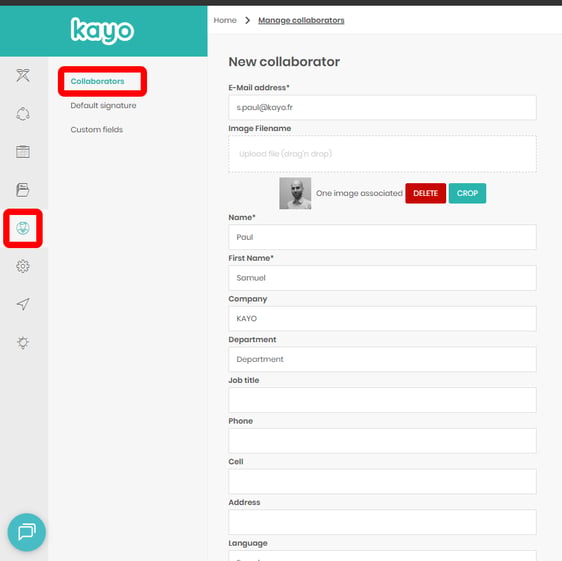
The Team Members module allows you to update a team member's information, including:
- Job title
- Department
- Mobile phone number
- Address
- And other profile details
To edit a profile:
- Click the relevant team member.
- Their profile page will open, where you can update the information.
How to create a new team member
From the Team Members page, you can also create new team members.
- Click Create → Single Add.
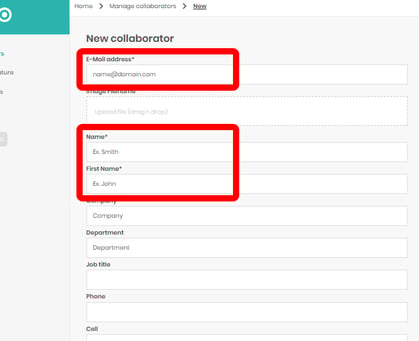
- Complete the team member's profile.
Required information
The following fields are mandatory:
- Email address
- First name and last name
You can use the information printed on the team member's business card to complete these fields.
Note: If you receive an error message when creating a team member, it means that the person already exists in your list or is assigned to another department. In this case, please contact us at projets@kayo.fr.
Important: Any changes made to a team member's profile are reflected in the KAYO App. The profile information is used for My eBusiness Card and the email signature, so make sure all details are accurate and up to date.