
In my project : Leadgen > Forms > Qualification.
⚠️ Do not confuse with the identification form, which replaces the business card if the prospect does not have one or if the equipment used does not have a camera (touch terminal, etc.).
How to create different qualification formes based on the interlocutor ?
You can create multiple qualification forms that are exclusive (a contact can only respond to one qualification form).
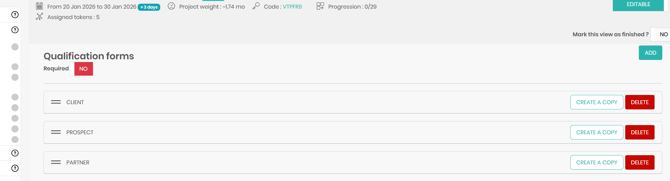
If the qualification is mandatory, the contact cannot be saved without filling in the mandatory questions. If it is not mandatory, a small "X" will appear in the KAYO App, allowing the qualification to be closed.
Each qualification form allows you to add questions of differents types.
How to fill in my questions ?
You have pre-built questions that are automatically translated into the different languages of your project (preferred language, country, etc.).
To create a new question, click on "Custom Field".
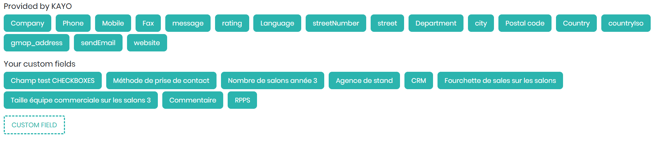
To create the question, fill in the question text and the response type, and choose whether the question is mandatory or not.
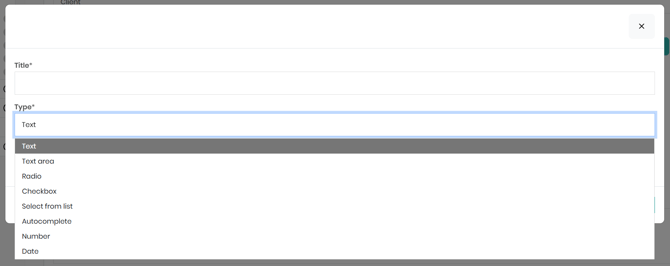
For multiple-choice responses, add one response option per line.
⚠️ Be careful not to add an extra line at the end of the options.