
Step 1 – In KAYO
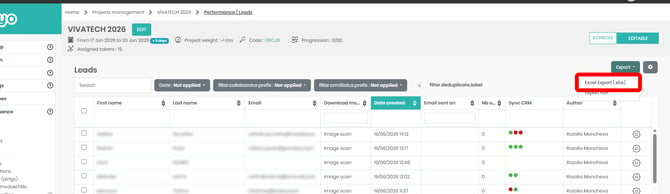
For a simple import, export your leads by going to PERFORMANCE → LEADS → EXPORT CSV, then import the file into your CRM using its file import procedure.
Step 2 – In Pipedrive
First, go to "…" (More) → Import data → From a spreadsheet.
Click "From a spreadsheet" and select the file you want to import. Pipedrive supports Excel (.xls and .xlsx) and .csv files.
Next, map the fields by matching the KAYO columns to the corresponding Pipedrive fields.
/2.gif?width=670&height=516&name=2.gif)
Finally, complete the import and answer the prompts displayed by Pipedrive.
/3.webp?width=670&height=198&name=3.webp)
For more information, see Pipedrive's complete article on importing contacts.